How CLI Progress Bars Actually Work (It’s Just One Line Rewritten)
- August 31, 2026
- 7 min read
- Programming concepts , Software quality
Table of Contents
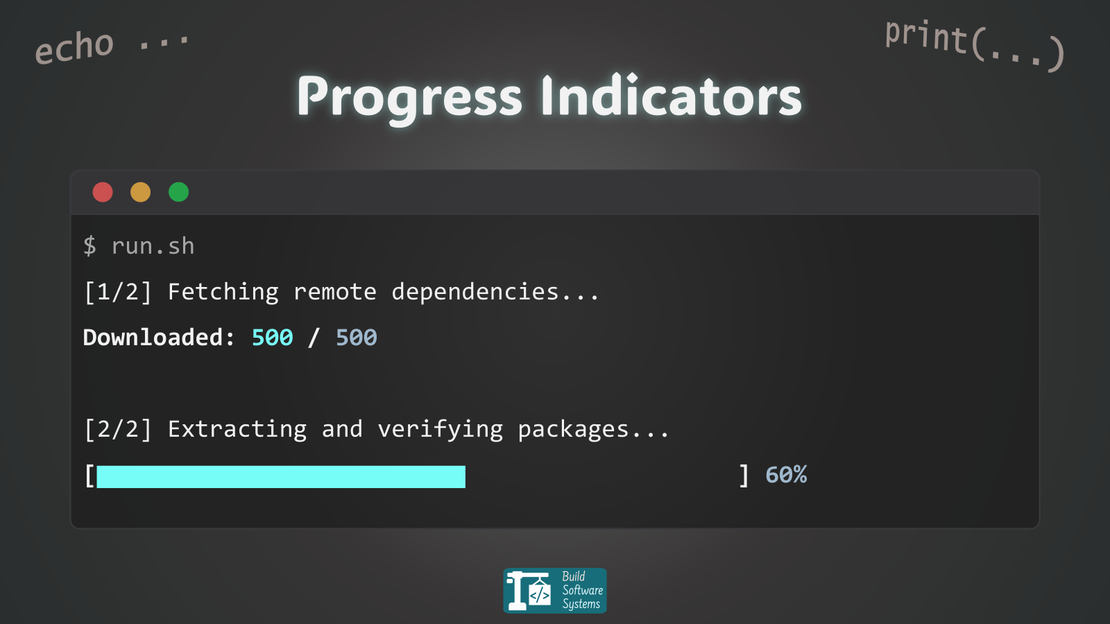
CLI progress bars look like they’re updating themselves.
[========            ] 40%
[############        ] 60%
[██████████          ] 50%
But they aren’t.
Nothing is actually moving in the terminal; the same line is simply being rewritten over and over.
The trick behind it is surprisingly simple: a single character moves the cursor back to the start of the line.
You can do this in any programming language that prints to a terminal, and you do not need any special libraries.
The Trick: Go Back, Then Rewrite
A CLI progress bar works by rewriting the same line repeatedly.
Each update does two things:
- Move back to the start of the line
- Print the new content to overwrite the old content
Start by moving the cursor to the beginning of the line. This is as simple as printing a carriage return character (CR, ASCII number 13):
1\r
Now just print the new content to overwrite what was there before.
Note that this works well when the new content is the same length as, or longer than, the previous content. We cover the case where the new content is shorter than the previous one in the next section on leftover characters.
Basic example: A Simple Progress Indicator
Here’s a quick side-by-side demo you can be replicated in any language:
The “Verbose” Version (A New Line Every Time)
Let’s start with what doesn’t work.
1n_iterations = 500
2for i in range(n_iterations):
3    # Report progress
4    print(f"Progress: {i + 1} / {n_iterations}")
5
6    # ⟳ Simulate work...
7    import time
8    time.sleep(0.01)
The output is readable, but it unnecessarily fills the terminal with output.
Rewriting the Same Line (Sleek)
Now add \r (carriage return) at the beginning of the text printed in the progress line.
Also add end="" to prevent new lines from being created and keep the cursor on the same line.
1n_iterations = 500
2for i in range(n_iterations):
3    # Report progress
4    print(f"\rProgress: {i + 1} / {n_iterations}", end="")
5
6    # ⟳ Simulate work...
7    import time
8    time.sleep(0.005)
9print()  # Move to the next line after completion
Now the printed progress line updates in place because each print:
- jumps to the start (
\r) - overwrites what was there before
Works Everywhere
Because the \r character lives inside your text, this trick works in any language that prints to a terminal.
Here is the same example in a few different languages:
Node.js
1process.stdout.write(`\rProgress: ${i + 1} / ${nIterations}`);
Bash
1printf "\rProgress: %d / %d" "${i}" "${n_iterations}"
Go
1fmt.Printf("\rProgress: %d / %d", i, nIterations)
Rust
1print!("\rProgress: {} / {}", i, n_iterations);
Different language. Same trick.
Add Color (Now It Feels Alive)
You’ve probably noticed that the progress text is pretty bland. Let’s fix that.
If you’ve seen how to colorize terminal output using ANSI codes, you can take this even further.
(If not, read: How to Make Your Terminal Talk in Color (with ANSI Codes))
 1BCYAN = "\x1b[96m"
 2SBLUE = "\x1b[38;5;67m"
 3RESET = "\x1b[0m"
 4
 5n_iterations = 500
 6for i in range(n_iterations):
 7    # Report progress
 8    print(f"\rProgress: {BCYAN}{i + 1}{RESET} / {SBLUE}{n_iterations}{RESET}", end="")
 9
10    # ⟳ Simulate work...
11    import time
12    time.sleep(0.005)
13print()  # Move to the next line after completion
Build a Real Progress Bar
Let’s turn that into something more visual:
 1# Change this to any number you want (e.g., 50, 500, 2345)
 2total = 500
 3bar_width = 30  # The progress bar will always stay exactly this wide
 4
 5for i in range(total + 1):
 6    # 1. Calculate the progress ratio and percentage
 7    ratio = i / total
 8    percent = int(ratio * 100)
 9
10    # 2. Scale the total progress down to the fixed bar width
11    filled_length = int(bar_width * ratio)
12
13    # 3. Build the visual bar strings
14    filled = "█" * filled_length
15    empty = " " * (bar_width - filled_length)
16
17    # 4. Print using '\r' to overwrite the line
18    print(f"\r[{filled}{empty}] {percent}%", end="", flush=True)
19
20    # ⟳ Simulating work (scaled faster for larger totals)
21    import time
22    time.sleep(0.005)
23
24print()
Now you get:
Still, nothing complicated is happening here.
Just one line being rewritten.
Similarly to the previous example, you can add color to the progress bar to make it more visually appealing.
Just add ANSI codes to the print statement, as follows.
1print(f"\r[{BCYAN}{filled}{RESET}{empty}] {SBLUE}{percent}%{RESET}", end="", flush=True)
Why This Sometimes Breaks
This is where some tutorials stop, and where real problems begin.
1. Leftover characters
If the new content is shorter than the previous content, leftover characters will remain on the line:
Remaining: 100%
Followed by:
Remaining: 9%
You might see:
Remaining: 9%0%
🔧 Fix:
To avoid this, we explicitly clear the line before printing again.
This is also done by printing. But this time, we use a special sequence of characters that terminals understand: the ANSI escape code.
This ANSI escape code tells the terminal to clear everything from the cursor to the end of the line:
1\x1b[K
It is made of two parts:
\x1bis the escape character (ESC, ASCII 27)[Kis the command to clear from the cursor to the end of the line
The combined sequence to move back to the start and clear the line is:
1\r\x1b[K
The updated progress can then be printed after that, as previously shown, and it will overwrite the previous content cleanly.
Tip
If your terminal is an older one that doesn’t fully support ANSI, you can also clear the line by printing spaces to overwrite the previous content, like this:
1print("\r" + " " * 50, end="")  # clear line
2print("\rNew content", end="")
2. Line wrapping
If your line exceeds the terminal width:
- it wraps
\ronly resets the current line
This results in messy output. Clearing the line with \x1b[K will not help because the cursor is on the second line.
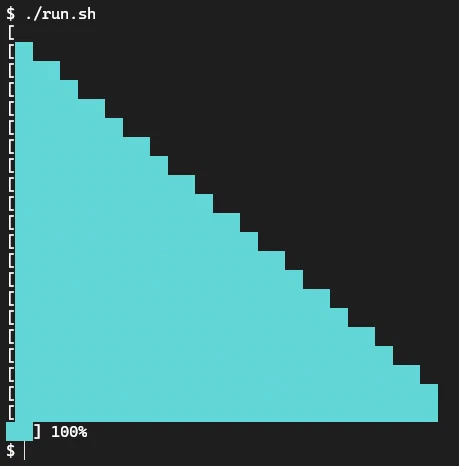
🔧 Fix:
- keep the line short
- or monitor the terminal size and clear the affected lines before writing. This requires more advanced cursor control. Let me know if you want me to cover that in a future article.
Summary
A CLI progress bar is not a fancy terminal widget. It is simply:
One line of text being rewritten over and over, with the cursor moved back to the start each time.
That single idea explains the whole pattern: use \r to reset, overwrite the same line, and clear leftovers when the next update is shorter. ANSI codes can then add color and clarity, but the underlying mechanism is still the same.
You can use a library (for example, tqdm or rich) only when your terminal output becomes more than a simple status line: multi-line dashboards, nested jobs, tables, spinners, or more complex terminal layouts. For a single progress bar, the built-in trick is often enough.
In short: build the basic behavior yourself, and add a library only when your UI grows beyond a one-line progress indicator.
Tip
Throughout this article, I’ve used \r for the carriage return character and \x1b for the escape character in the ANSI code examples.
This is because they are the most common and widely supported representations.
However, we could also use the hexadecimal representation of the carriage return character, which is \x0d (since 13 in decimal is 0d in hexadecimal).
Additionally, some languages, such as JavaScript, also support the Unicode form (\u000d), and others, such as C, also support the octal form (\015).
Newsletter
Subscribe to our newsletter and stay updated.